
How to share encrypted files with someone you trust
In short: the safest way to share a private file is to encrypt it so that only the other person’s own key can open it. Then it does not matter how you send it. You swap a public “contact card” with them once, check it really is theirs, and from then on you can send them files that no one else can read.
The problem with sending a password with the file
A common way to share a private file is to protect it with a password, then tell the other person the password. The usual advice is to send the password a different way from the file: the file by email, say, and the password by text message or in a phone call.
That works, but it is fragile:
- Every file needs a password, and every password has to travel somehow.
- If both messages are seen, by someone reading over a shoulder, or someone with access to both accounts, the file is open.
- Passwords get reused. One shared password tends to end up protecting many files.
A better way: a public card and a private key
Public-key encryption removes the password from the journey. Each person has two matching parts:
- A public card. It is safe to share with anyone. Others use it to lock files for you.
- A private key. It stays on your own device and is the only thing that can open what was locked for you.
You share your card once. After that, anyone with it can send you files that only you can open, and nothing secret ever travels with them.
- Swap contact cards
- Compare the contact code
- Encrypt the file for them
- Send it however you like
With Doughnut Forge, step by step
1. Both of you create an identity
Each person installs Doughnut Forge and creates an identity. This makes the private key, which stays on the device, and a 24-word backup phrase. Keep that phrase safe and never share it.
2. Swap contact cards
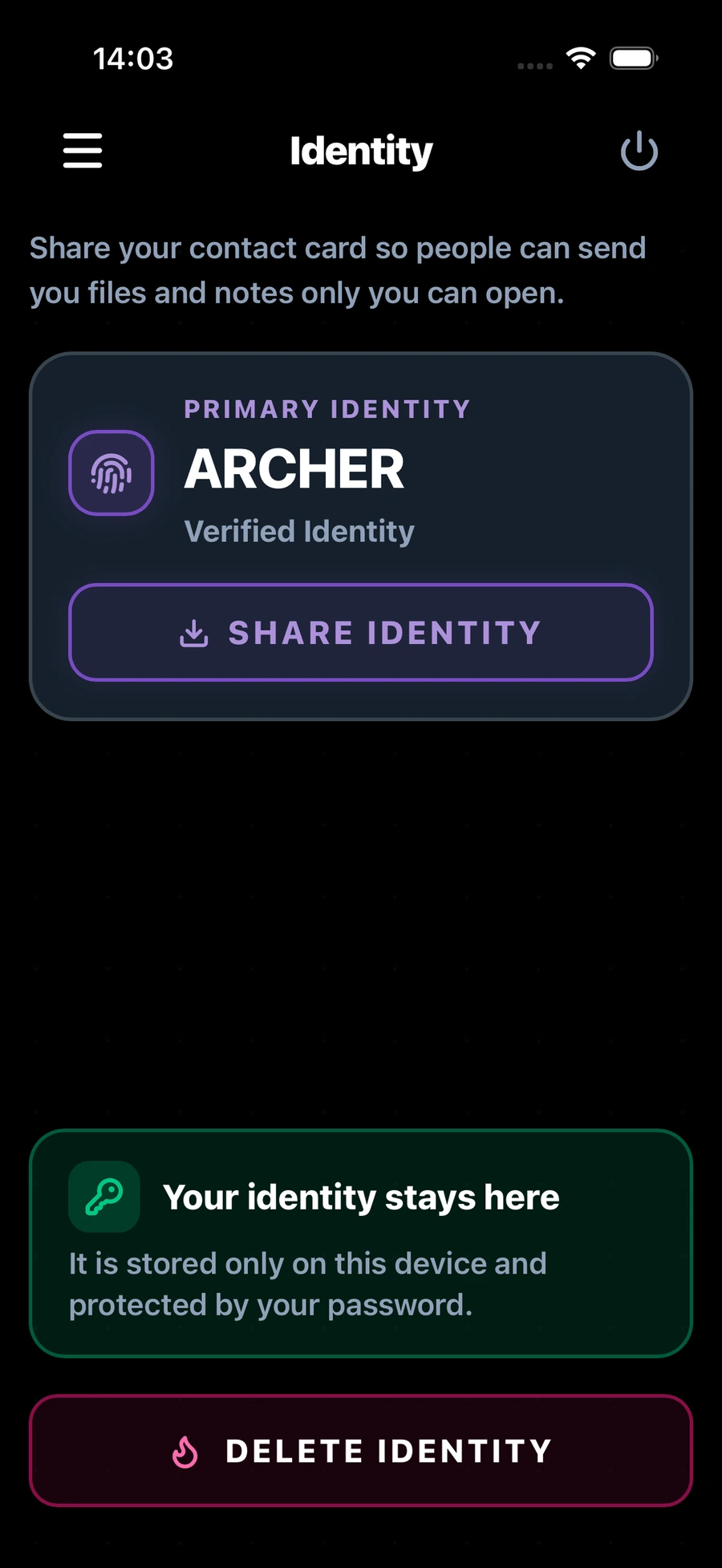
Your contact card is a small file ending in .vltc2. On the Identity screen, choose Share Identity. You can share the card straight from the app with Share Card, or keep a copy with Save File and send it however you like. The card shows a public name that you choose, so the other person knows whose it is.
Your contact card is safe to share. It lets people encrypt files for you, but it cannot be used to open anything sent to you.
3. Add their card to your contacts
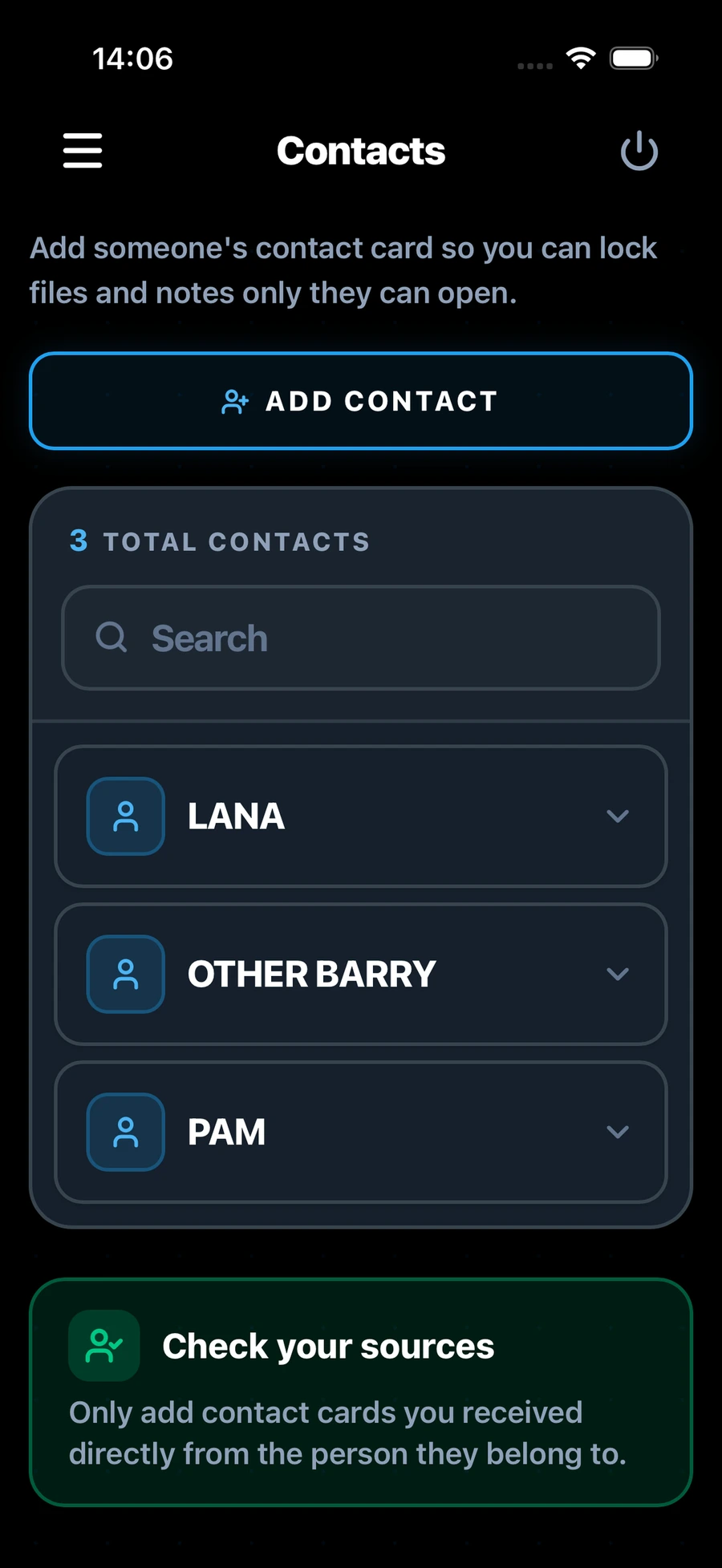
When you receive their card, open Contacts and choose Add Contact, then pick the card file. You can add several cards at once. The app checks each card has not been tampered with.
4. Check the contact code
Each contact has a short contact code. Ask the other person to read out the code shown on their own Identity screen, in person or on a call, and compare it with the code shown for them in your contacts. If they match, you have the right card.
This step matters most when the card reached you through a channel someone else could interfere with. Only add cards you received directly from the person they belong to. If a card does not match a contact you already have, the app refuses it.
5. Encrypt the file for them
Encrypt the file as usual. Under Who can open this?, select the contact, or several contacts. You are always included too, so you can open the file yourself. On a computer, the locked file, ending in .vlt2, appears next to the original. In the iPhone and iPad app, the share sheet opens so you can send it or save it straight away.
The locked file does not show who can open it. Only the people it was encrypted for can unlock it.
6. Send it any way you like
Email, a messaging app, a cloud folder or a USB stick all work. However you send it, only the people you chose can open it.
7. They open it with their own identity
The other person opens the file in Doughnut Forge and decrypts it with their own identity. There is no file password to type and nothing extra to send.
If something does not look right
- “Access Denied”: the file was not encrypted for the identity on this device, or it has been changed since it was encrypted. Ask the sender to check they chose the right contact.
- “Unknown Sender Detected”: the file still opens, but the app cannot match the sender to one of your contacts. Be careful with files you did not expect.
Good habits
- Only add cards you received directly from the person they belong to, and compare the contact code.
- Never send your backup phrase or password to anyone, for any reason.
- Folders encrypted on a computer open on computers. They cannot be opened on iPhone or iPad, so send single files to someone who uses a phone.
- Keep your backup phrase safe. If you lose it and your password, files sent to you cannot be opened.
New to encrypting files? Start with How to encrypt files on a Mac without using the cloud, or read Offline file encryption: how it works and what it protects. Questions are welcome on the support page, and the download page lists every platform.